Quick Start Guide
Our QR Code Generator app is available for multiple platforms, including Airtable and Microsoft Office. You can also choose to use our API for even more extensibility and integration with platforms we don’t yet support.
Uploading a logo or icon for your QR codes
Section titled “Uploading a logo or icon for your QR codes”The following requirements apply to all images, regardless of whether you upload them directly or use a publicly hosted image:
- JPG files work best
- Transparency is not supported
- Logo will work across all platforms with your license key
Upload Your Own Image
Section titled “Upload Your Own Image”If you don’t have the image hosted on your website, you can visit this page on our website to upload your custom logo. It will be used across all our extensions and API when you provide your API key.
Publicly Hosted Images
Section titled “Publicly Hosted Images”If you already have the image hosted on your website, you can provide us with the URL and we’ll fetch the image and use it in your QR codes.
- Install the Airtable or Microsoft Office extension
- Open the “Settings” pane in the Airtable extension, or select “Premium Options” in the Microsoft Office extension
- Provide a URL to a publicly-hosted image. Note: JPG files will work best, and transparency within images is not supported as this can cause issues with QR code readability
- Once uploaded, a logo or icon will work across all platforms when your license key is provided. This includes Airtable automation scripts
Image Requirements:
- JPG files work best
- Transparency is not supported
- Logo will work across all platforms with your license key
Platforms
Section titled “Platforms”Airtable
Section titled “Airtable”If you’re looking to generate QR codes automatically, we suggest you use our automation script. Otherwise, our Airtable extension is available to generate QR codes manually for your Airtable bases. Both options provide feature parity.
Airtable Extension
Section titled “Airtable Extension”Follow these steps to get started with our Airtable extension.
- Open our Airtable extension on the official Airtable marketplace. Click “Add” and in the modal that appears, “Add Extension” if you agree to the terms
- Once installed, open the Airtable base that contains the data you want to generate QR codes for
- Click “Extensions” and scroll down until you see the “QR Code Generator” extension installed in step #1
- Under the “Data source” tab, select the table that contains the data you want to encode in your QR codes
- In the “View” field, select the Airtable view that contains the data for your QR codes
- In the “Content” field, select the content that you want to encode in your QR codes. This could be something like a URL, string or SKU number
- In the “QR Code” field, select a field where you want your QR codes to be inserted as attachments
- Click “Generate QR codes”
Your QR codes will be generated and inserted into your “QR Code” field as attachments.
Automation Script
Section titled “Automation Script”Follow these steps to get started with our Airtable automation script to generate QR codes automatically for your Airtable data.
- Open the welcome email sent to you after purchasing your license key. WIthin it you can download the automation script. Open it locally in a text editor.
- For the “Table” variable, type the name of the Airtable table that contains the data for your QR codes
- For the “Content” variable, type the name of the Airtable field that contains the content for your QR codes. This could be something like a URL, string or SKU number
- For the “imageAttachmentField” variable, type the name of the Airtable field where you would like the insert your QR codes. Note that this field type must be set to ‘Attachment’ in Airtable
- In the “licenseKey” variable, enter your license key
- In the “Error correction level” field, choose the error correction level you’d like to use for your QR codes. In most cases, we suggest starting with the default (M) and modifying later if necessary
- Copy the script, open Airtable and navigate to the Airtable base you want to generate QR codes for
- Click “Automations” in the top naviation bar on Airtable, and choose “Create automation”
- Select a trigger for starting your automation. This depends on your needs, but for most customers this would be “When record created” or “When record updated”
- In the “Trigger details” pane that appears, configure the required information. For the “When record created” or “When record updated” triggers, you’ll need to specify the table to monitor for new records or modification to existing records
- Then choose “Add advanced logic or action, and select “Run script” in the “Airtable” section. Note that this will be greyed out and disabled if you’re on an Airtable plan lower than Pro (see above warning)
- In the window that appears, paste the automation script from step 8 in the “Code” text field
- In the “Input variables” pane on the left-hand side, click “Add input variable” and set the name to recordId. Set the value to Airtable record ID by clicking the blue “+” button, and searching for record ID as shown in the screenshot below.
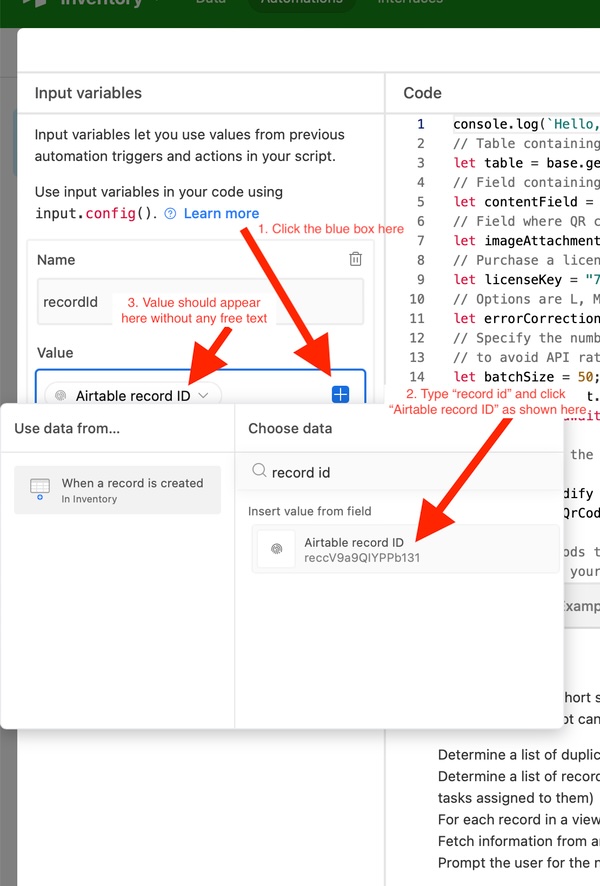
- Click “Finish editing” and your automation setup is complete
If configured correctly, your QR codes will now be generated and inserted into your “QR Code” field as attachments automatically.
Microsoft Office
Section titled “Microsoft Office”Follow these steps to get started with our Microsoft Office app.
- Install our app from Microsoft’s app store, App Source
- Open the app you’d like to use QR Code Generator with. We support Microsoft Excel, PowerPoint or Word on both the web and within the desktop apps
- Open the “Insert” tab in Excel, PowerPoint or Word and look for “QR Codes”. Click “QR Code” to open the app in a side pane
- Under “Free options”, in the “QR code content” field enter the value you’d like to encode within the QR code. This could be something like a URL, string or SKU number
- Leave the rest of the settings set to the default value, and click “Generate QR code”
Your QR code will be generated and inserted into your document as an image.
REST API
Section titled “REST API”If we don’t yet support the platform that you wish to generate QR codes for, or you want to build a custom solution that supports generating QR codes then you may want to consider using our REST API.
Full documentation for the API can be found here, but to generate a simple QR code you can issue the following POST request.
// Example cURL command to generate a QR code containing the text "hello world"curl --location --request POST 'https://qrcodegenerator.api.littleappy.co/qrcode/basic' \--header 'Content-Type: application/json' \--data-raw '{ "content": "hello world", "license": "INSERT YOUR LICENSE KEY HERE"}'A free tier is available for all platforms.